
Work with your report · 5 min read
A tour of the report viewer
Find your way around the document, switch between results, and trace a sentence score back to the page.
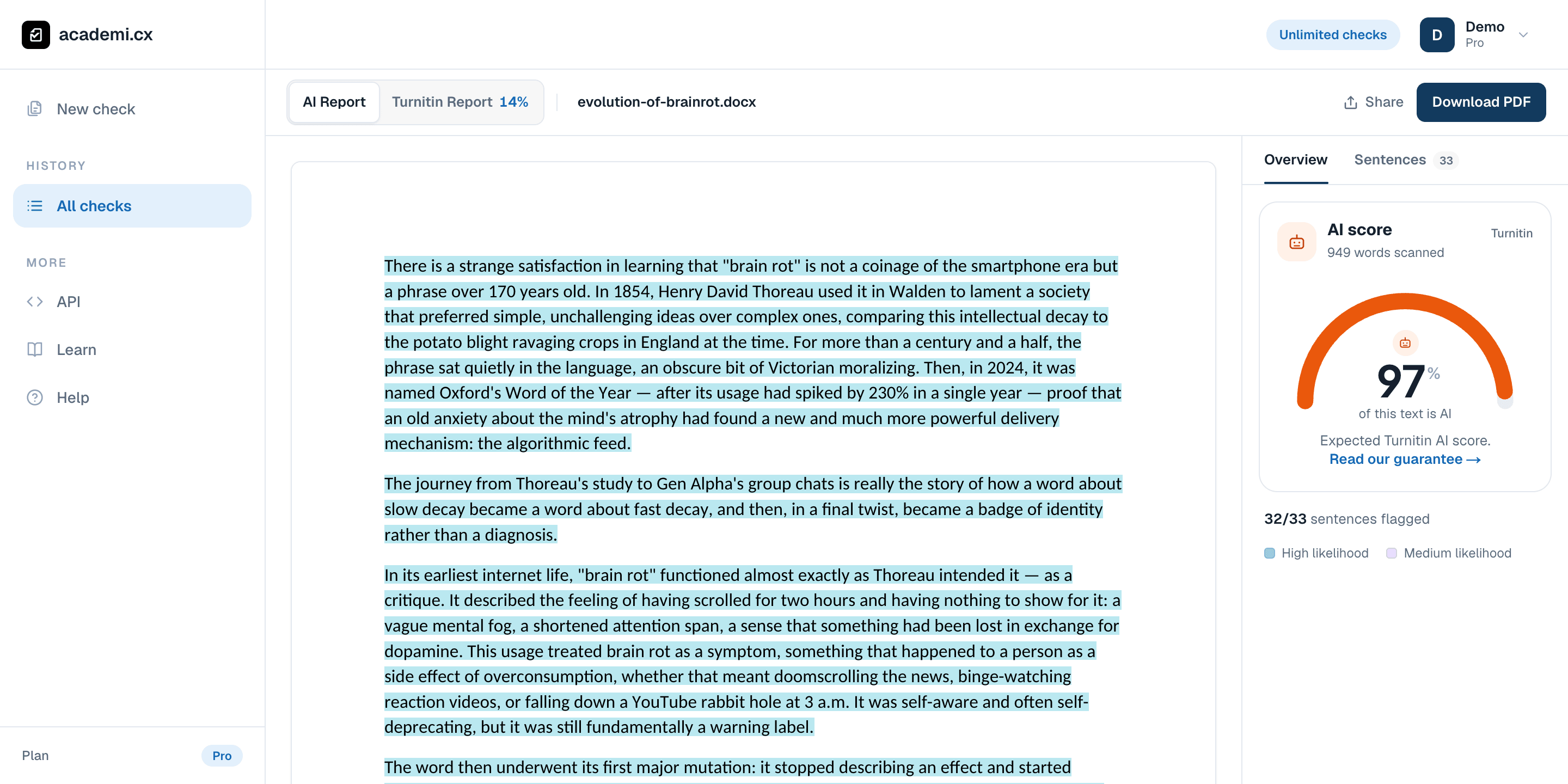
The overall percentage previews your expected Turnitin AI result. This demo scored 97%; it is an estimate about the text, not a verdict about its author.
Start with the toolbar
The toolbar identifies the check you have open. All checks in the sidebar takes you back to your history. AI and Similarity select the result you are reading; the inactive tab can show the other result’s percentage or processing indicator.
As the owner, you can select the filename to rename the check. This changes its label in your history, not the text that was analyzed. The toolbar also contains the available download and sharing controls. Options depend on your access and whether the relevant report has finished.
Read the paper and the overview together
The document occupies the main reading area. PDFs retain their page layout, with highlights placed over the text. Pasted text uses a reading view. Word-document display depends on the available conversion and layout information.
Overview summarizes the AI result. Use it to orient yourself, then examine the paper. Scroll within the document to reach later pages. On a phone, the result summary sits above the paper; expand it to reach the detailed controls.
Jump to a sentence
Sentence percentages require the relevant unlocked access. A locked report hides the numbers and does not present the list in score order, so its first row should not be read as its most strongly flagged passage.
Select Sentences in the AI results panel.
When sentence scores are unlocked, the list starts with the highest raw classifier scores. Excluded and unscored passages are not ranked.
Select a sentence row. The document scrolls to that passage and marks the selection.
Read the surrounding lines, and hover or select scored text to inspect the available detail. Return to Overview when you need the document summary.
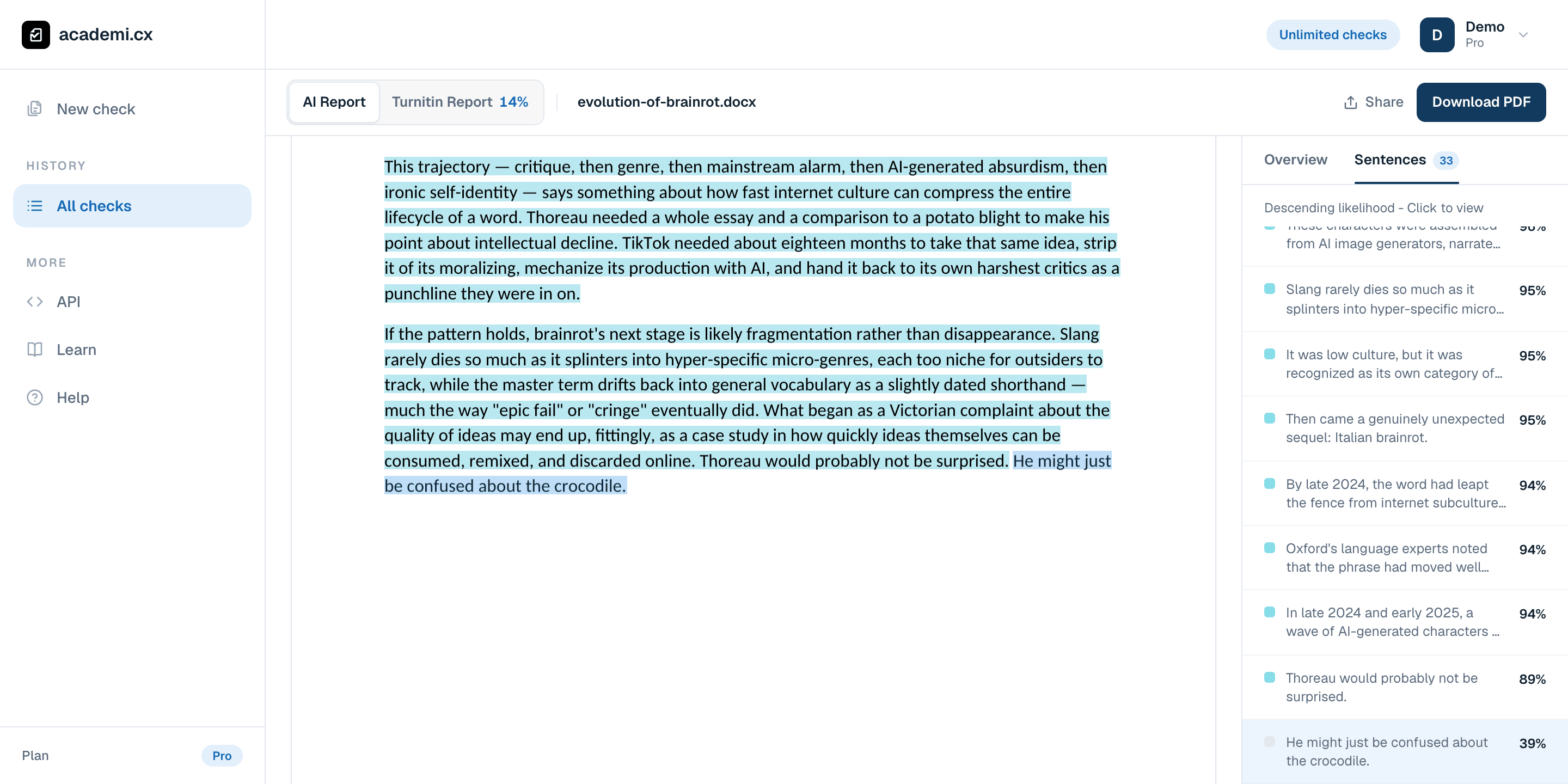
The unlocked sentence list puts stronger AI signals first. These numbers help you decide where to look; averaging them does not reproduce the overall score.
Switch to sources
Select Similarity for the separate source-matching result. If it is ready, Overview shows its summary and Sources lists the matched material. Select a source to focus its matches; Show all restores the broader view. If the report is still running, the page shows its current progress.
Source highlights use source colors, rather than the cyan/purple AI classification bands. The similarity view may use the document’s pages, a text view, or the available report PDF, depending on how well the source matches could be placed.
Save the result and continue your review
Use the available download control to retain a report or original file. Open Share when you want another person to view the report. Keep a copy of the draft it belongs to, so a reviewer can identify the version being discussed.
The report is a view of a completed check. To change the writing, edit the source document and run a new check; renaming the report does not re-analyze it.